Low Stock Management
The Low Stock Management feature helps you keep track of your inventory levels by alerting you when products or raw materials fall below a certain threshold. You can also configure WhatsApp notifications to receive real-time alerts.
Prerequisites
- To receive WhatsApp notifications, a minimum balance must be available in your POSItEasy WhatsApp account.
1. Enabling Low Stock Monitoring
Low stock monitoring must be enabled for each item (Product or Raw Material) individually.
In POSItEasy Merchant App
- Navigate to Inventory > Base Menu > Products (or Raw Materials) from the side menu.
- Tap the
 button adjacent to the item you want to monitor.
 - Tap the Manage Stock button.
- Toggle the Stock monitor switch to ON. (Refer to Manage Product Stocks for details).
- Toggle the Add Low Stock switch to ON.
- Enter the Low stock quantity (the threshold value at which you want to be notified).
- Tap OK.
In POSItEasy Staff App
- Navigate to Inventory > Products (or Raw Materials).
- Tap the button adjacent to the item you want to monitor.
- Tap the Manage Stock button.
- Toggle the Stock monitor switch to ON. (Refer to Manage Product Stocks for details).
- Toggle the Add Low Stock switch to ON.
- Enter the Low stock quantity (the threshold value at which you want to be notified).
- Tap OK.
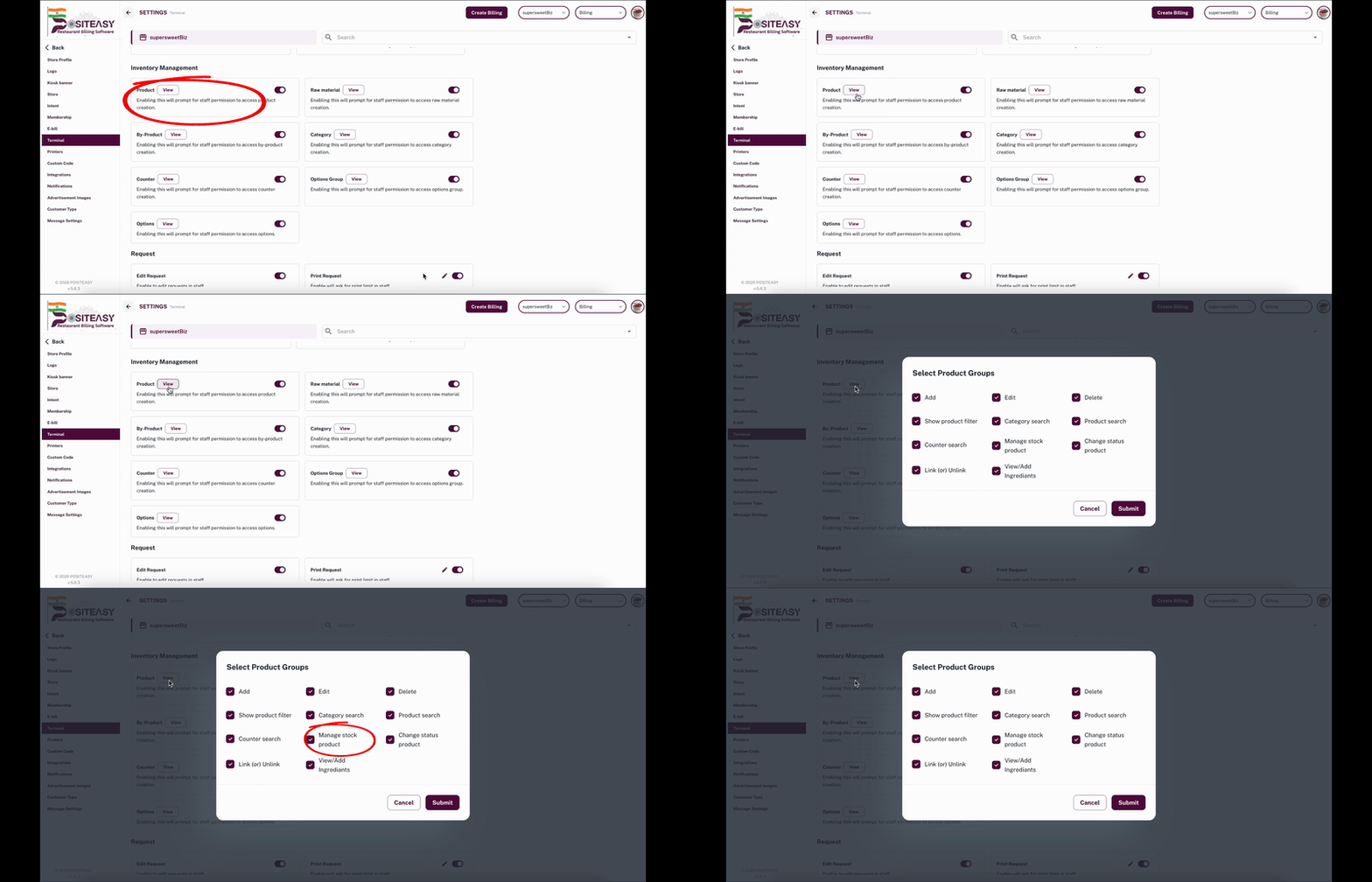
Staff members may require the Inventory Management > Product (or) Raw Material > Manage Product Stock permission enabled in the Merchant App to access these settings.
2. Configuring Low Stock Notifications
Once items are configured with low stock thresholds, you can enable automated notifications.
Enable WhatsApp Notifications (Merchant App Only)
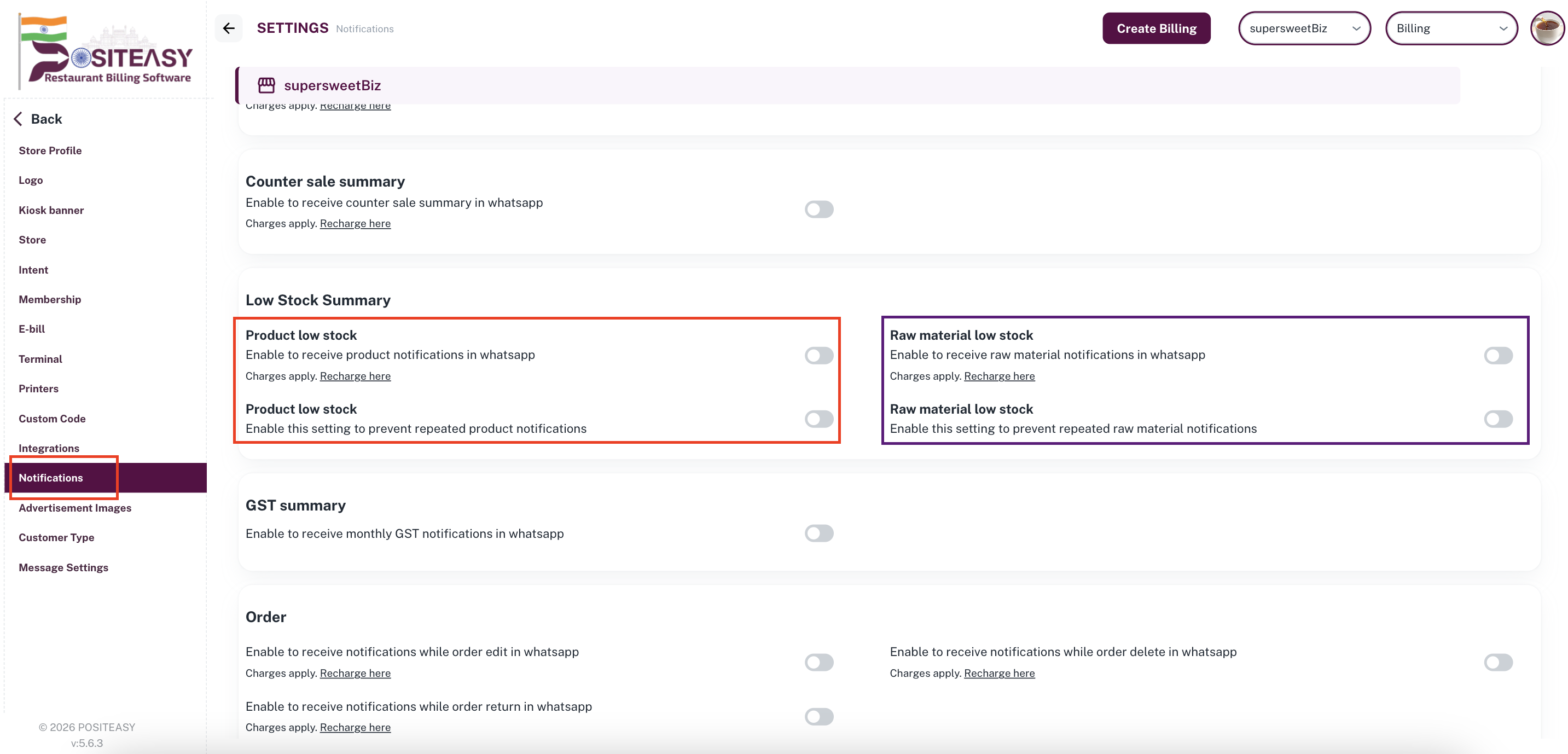
- Navigate to Settings > Notifications.
- Tap on the WhatsApp tab.
- Locate the Low Stock Summary section.
- Prevent Repeated Alerts: Toggle ON the switch labeled "Enable this setting to prevent repeated product notifications".
This ensures you only get alerted for newly low-stock items or significant changes.
-
Toggle Product low stock and/or Raw material low stock to ON.
-
Configure Details:
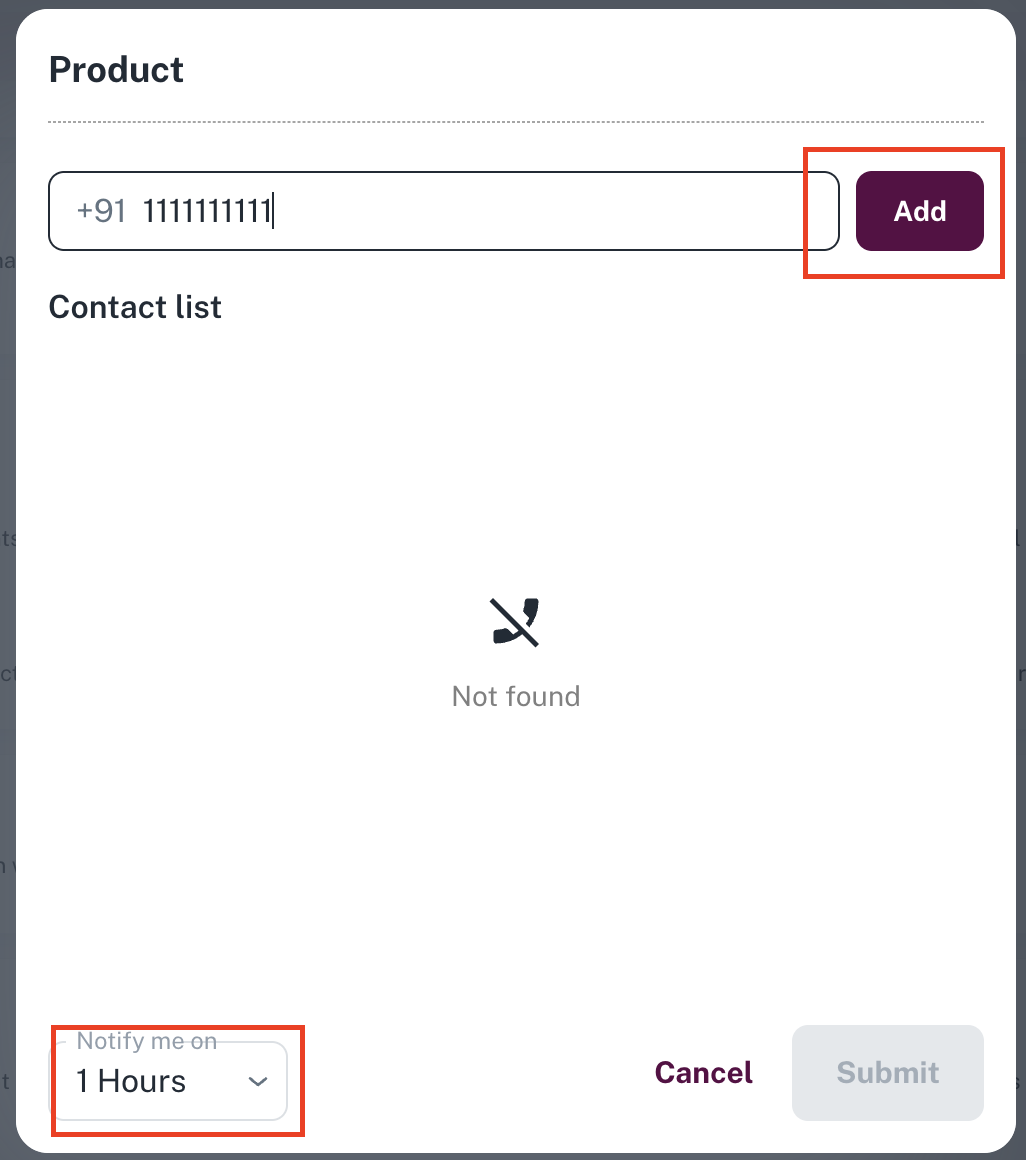
- Contact Numbers: Enter the WhatsApp number that should receive the alerts (without the '91' prefix, as it is added automatically) and tap the Add button.
- Notify Me on (hours): Set how often the system should check and send low stock summaries (e.g., every 1 hour).
-
Tap Submit.
WhatsApp Message
When an item (raw material or product) reaches the low-stock threshold, you will receive a WhatsApp notification with a PDF attached containing the current stock details.